

Errors when installing applications on a Mac
Errors when installing applications on Mac
The app was not downloaded from the Mac App Store.
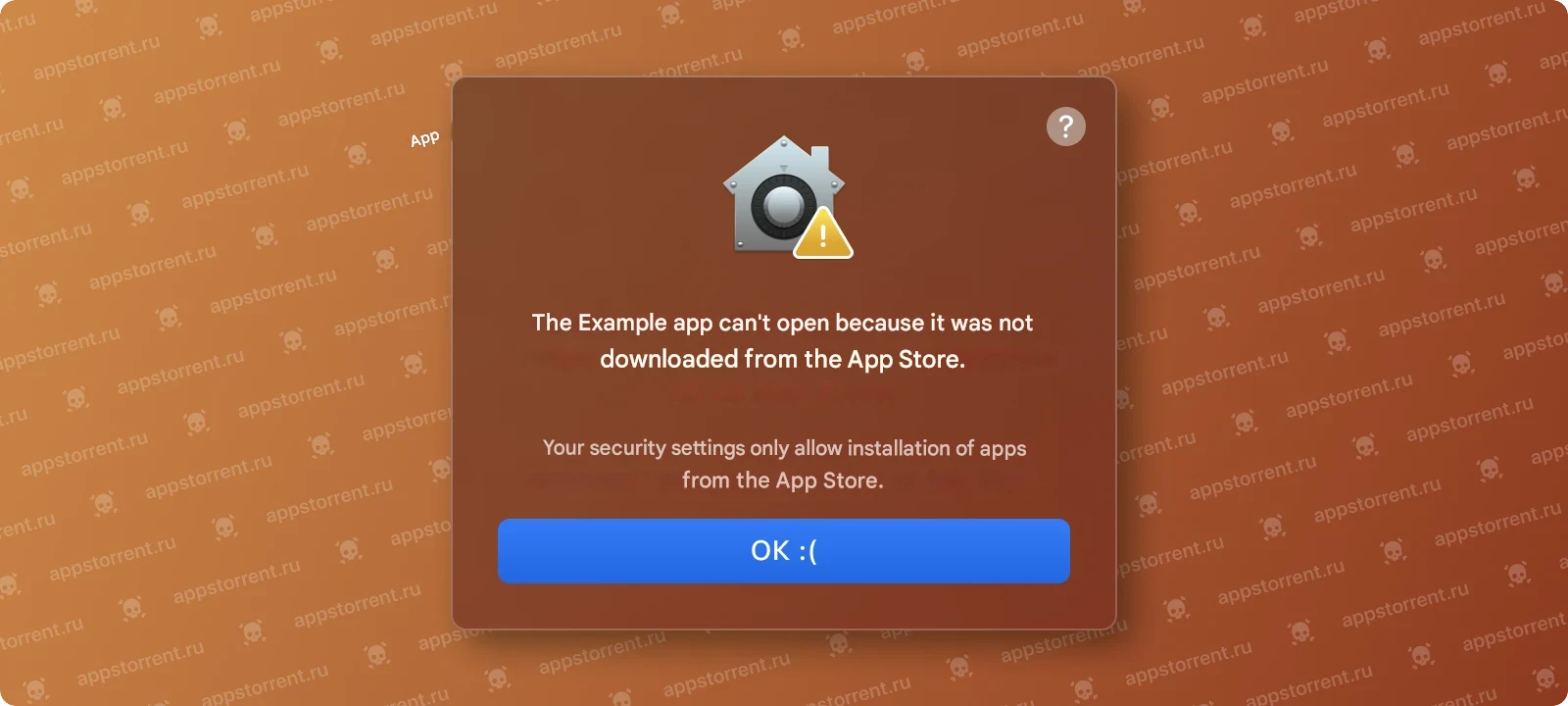
If you’ve configured your Mac to allow installations only from the App Store and you try to install an app from another source, your Mac will display a message that the app isn’t from the App Store.
Solution for The app was not downloaded from the Mac App Store.
Open System Preferences > Privacy & Security.
Enable apps downloaded from the “App Store and verified developers.”
You will need an administrator password or Touch ID.
Congratulations, you can now run apps from the Mac App Store and verified developers.
If this doesn’t help, see the article on disabling Gatekeeper and performing a “dequarantine.”
Application from an unknown developer.
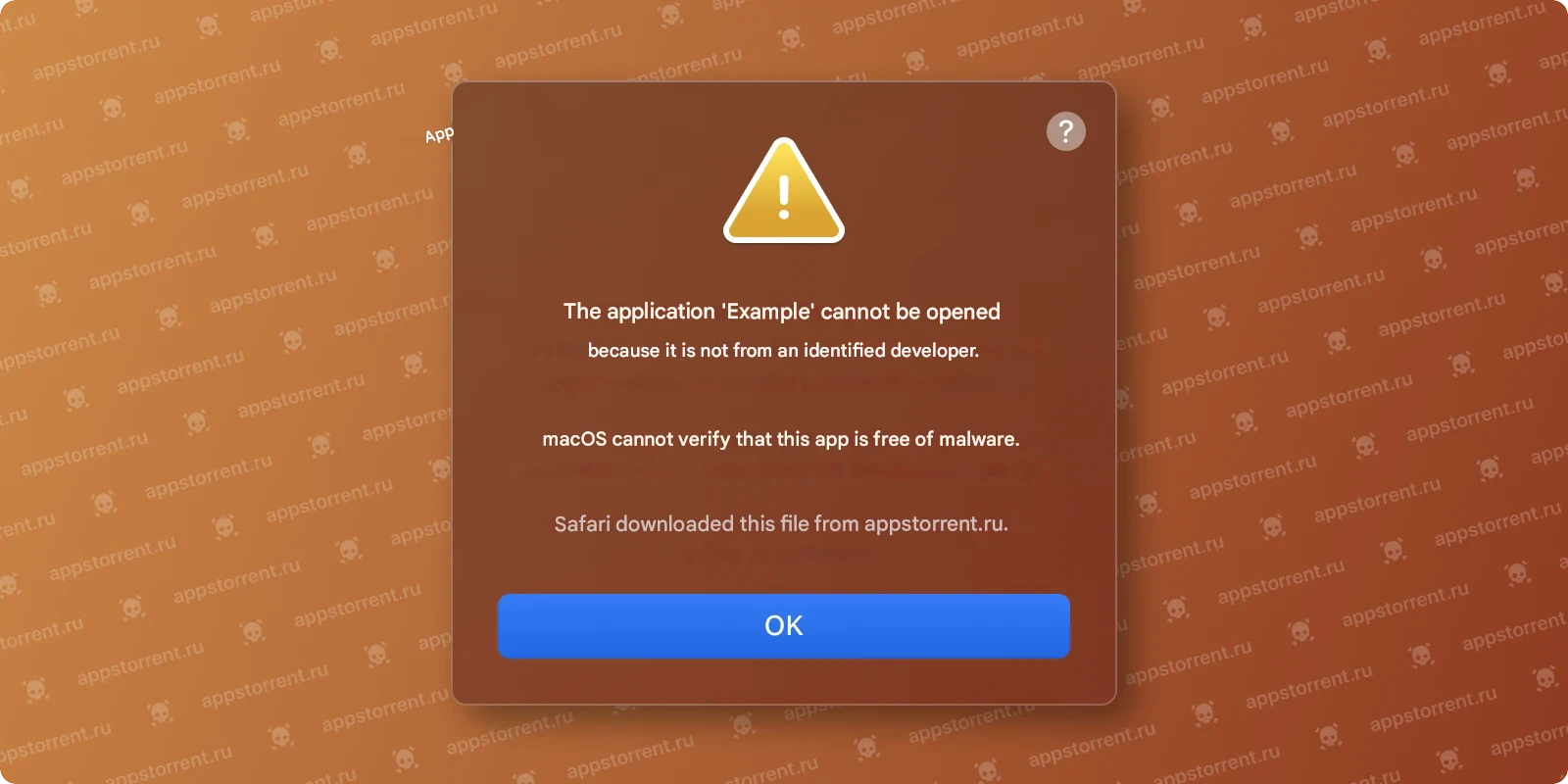
If your Mac is set up to allow installation of apps from the App Store and verified developers, and you try to install an app that isn’t registered with Apple, you’ll also see a warning.
Solution for Application from an unknown developer.
Hold down the Control (or Ctrl) key ⌃ and click the program icon, then select “Open” from the context menu.
Alternatively, first open the program by double-clicking it, click “OK” in the warning that appears, then right-click the program and select “Open” from the context menu.Click “Open” in the dialog box .
The program is saved in the security settings exceptions list, and in the future, you can launch it by double-clicking it (or from Launchpad) like any registered program.
This solution can also be applied to the following error.
If this doesn’t help, see the article on disabling Gatekeeper and performing a “dequarantine.”
The program cannot be checked for malware.
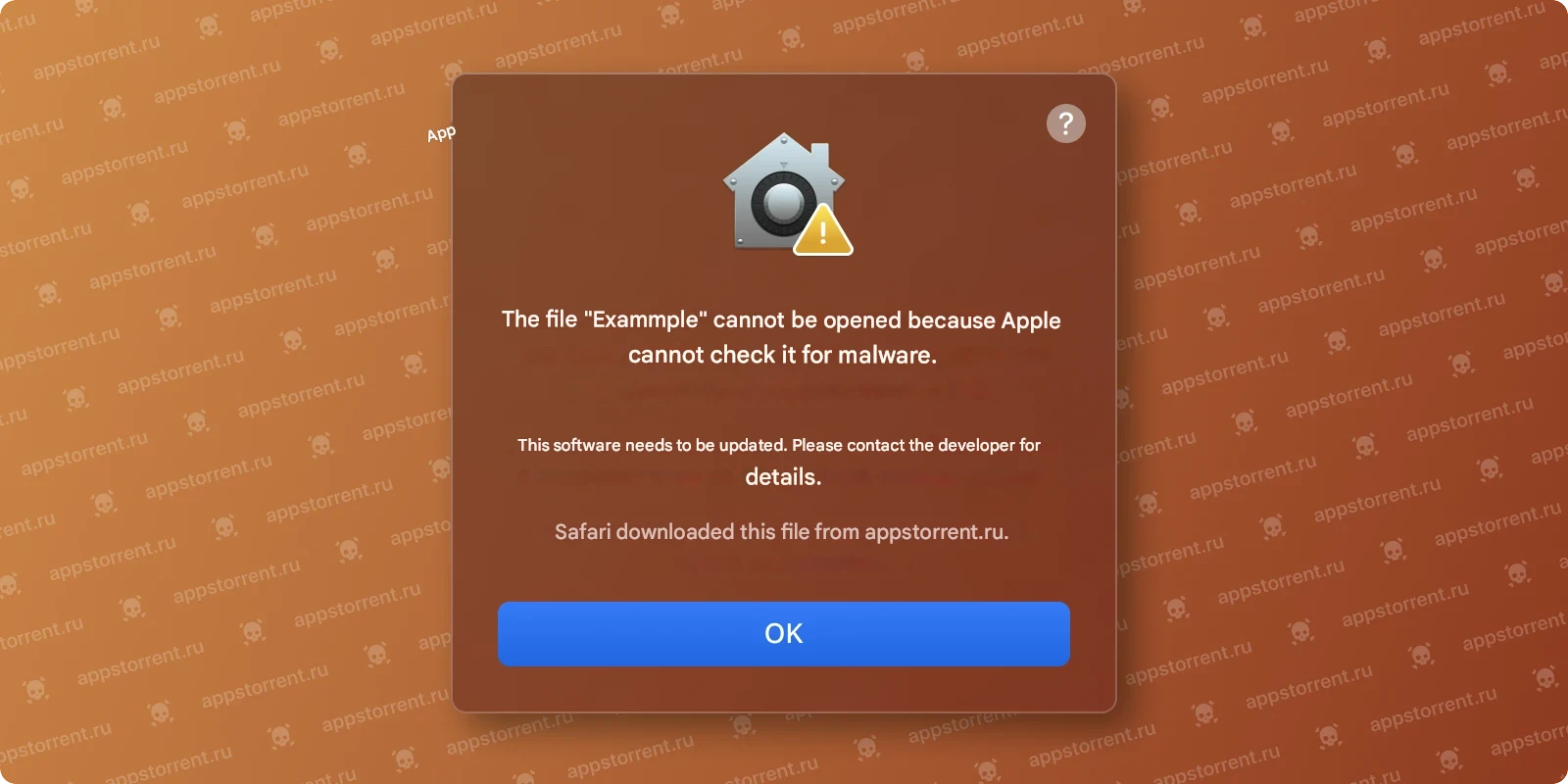
Due to Apple’s mandatory app notarization process, macOS Catalina prevents unverified apps from running, even if they are signed by a registered developer. This prevents the app from launching.
Solution for The program cannot be checked for malware.
In the System Preferences menu, click Security & Privacy and select General.
Click “Confirm Login” to launch the blocked program.
In the dialog box, click “Open.”The program is saved in the security settings exceptions list and can be launched by double-clicking it (or from Launchpad) like any registered program.
This solution can also be applied to the previous error.
If this doesn’t help, see the article on disabling Gatekeeper and performing a “dequarantine.”
The program is corrupted
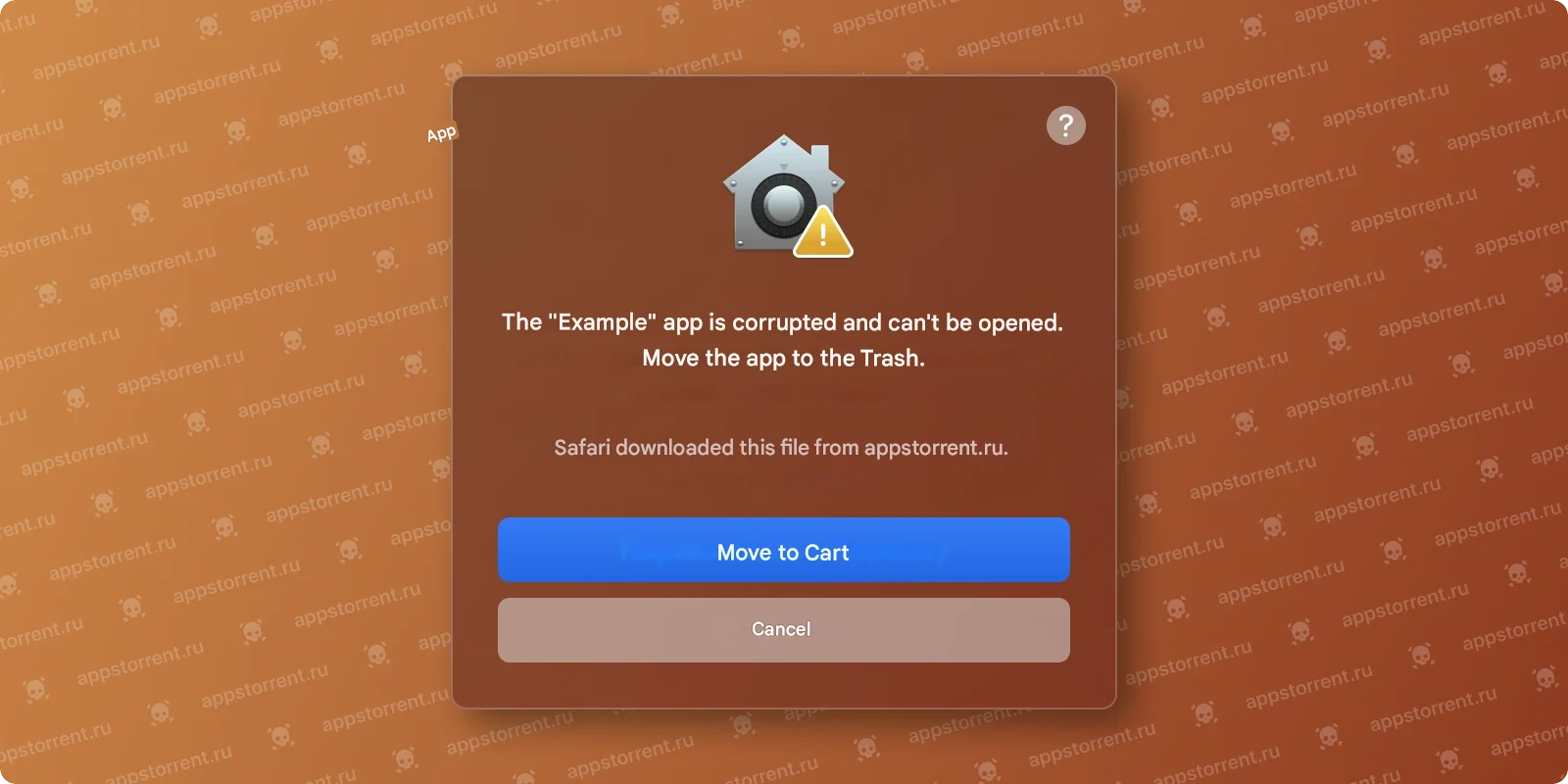
If macOS detects a problem with an app—for example, malicious content or modifications made after scanning—you’ll be notified when you try to open the app and asked to move it to the Trash.
Solution for The program is corrupted
Use the Auto Fix script for automatic resolution.
You can download it from this link.Or, run the command in Terminal:
sudo xattr -r -c /Applications/LockedApp.app.
“LockedApp.app” should be the corrupted application.
Learn more about Gatekeeper at this link.
Error: “Disk image is corrupted”
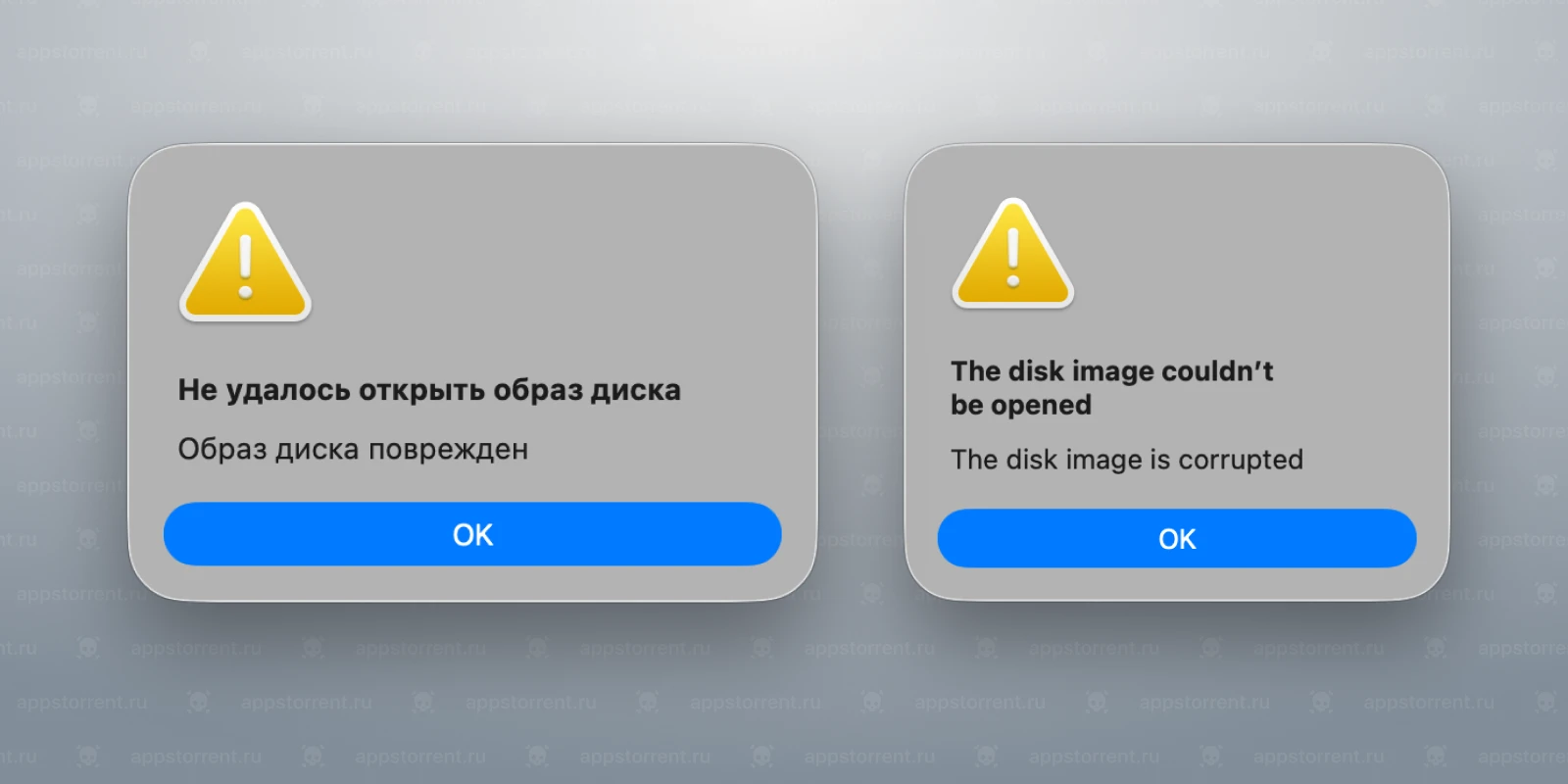
This error occurs if the file was not downloaded completely or contained errors.
Show solution for Error: “Disk image is corrupted”
To avoid this problem, use download managers, such as:
• Free Download Manager
• Motrix
• JDownloader 2
• Progressive Downloader and other similar programs.
These applications download files faster thanks to multi-threaded connections, provide a stable connection, and protect against interruptions. When paired with a browser extension, they automatically intercept links and replace the built-in download with a more reliable one.
Error installing Adobe applications.
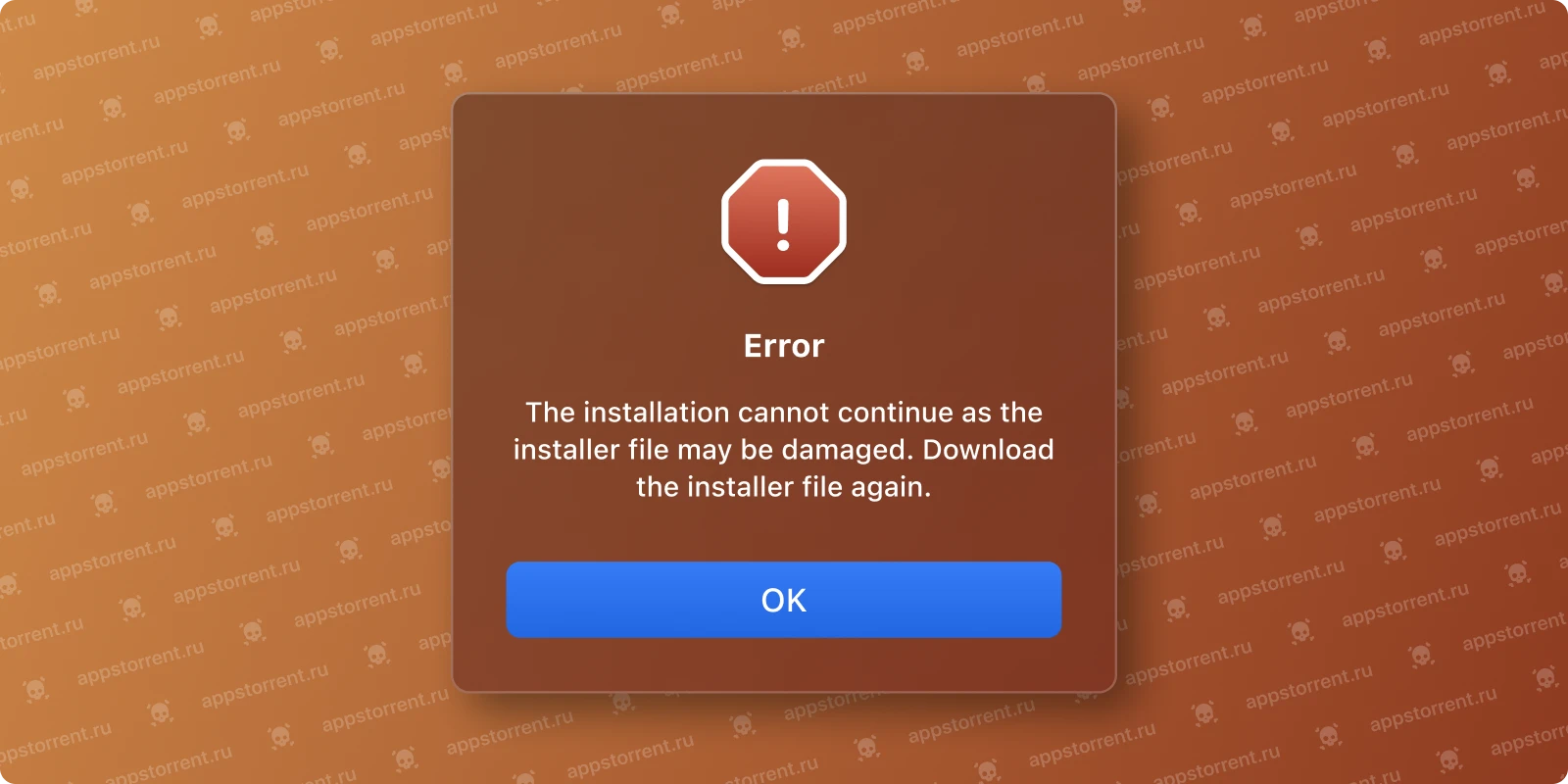
This error occurs when installing Creative Cloud apps that use local installation packages.
Show solution for Error installing Adobe applications.
This method doesn’t work on Macs with Apple Silicon processors for Adobe 2021 builds from TNT Team.
Right-click the “Install” file and select “Show Package Contents” from the context menu.
Go to Contents > MacOS.
Run the Unix executable file named “Install.”
A terminal window will open, launching the installer. Enter your administrator password to allow the installation.
You can install in trial mode, use a serial number, or confirm your Creative Cloud subscription.
Error 1: When installing Adobe products
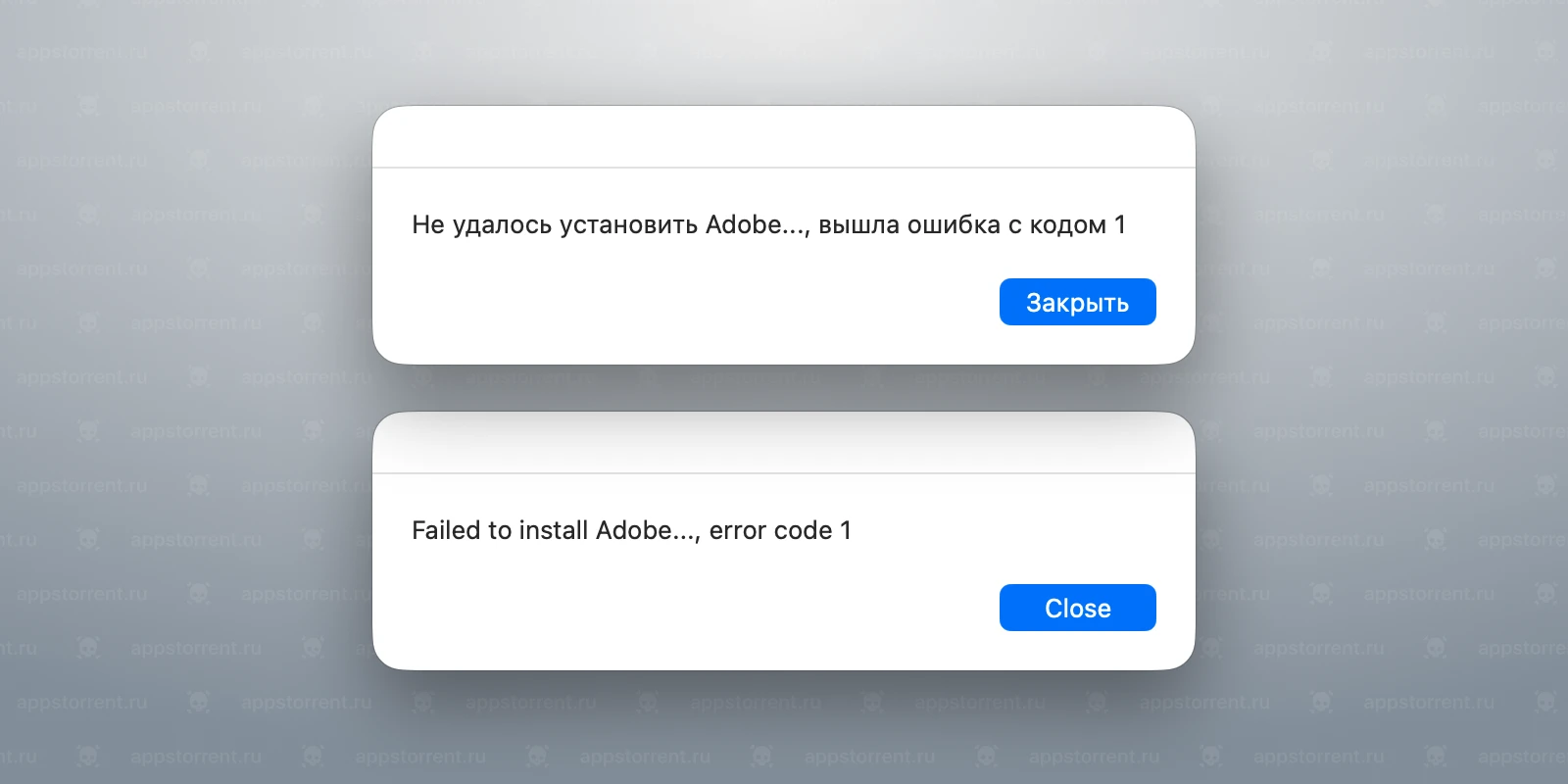
This error appears if you don’t have Rosetta installed. Rosetta is an Apple utility that allows you to run applications designed for Macs with Intel processors. You’ve likely recently purchased a Mac and are new to macOS: Rosetta isn’t installed by default and is prompted for installation when you launch applications designed for Macs with Intel processors.
Show solution for Error 1: When installing Adobe products
To fix the error, launch the Terminal program. You can find Terminal by following this path: Applications → Utilities → Terminal.
A command window will open, specifying the date, username, and device name.
Copy and paste the following command:
/usr/sbin/softwareupdate –install-rosetta –agree-to-license
Press Enter.
You will need an internet connection to install Rosetta. The download and installation of files will begin; please wait until it completes. The installation will conclude with the message “Install of Rosetta 2 finished successfully” in Terminal.
After installing Rosetta, repeat the installation of your Adobe product.
Error: Problem with CCXProcess when installing Adobe
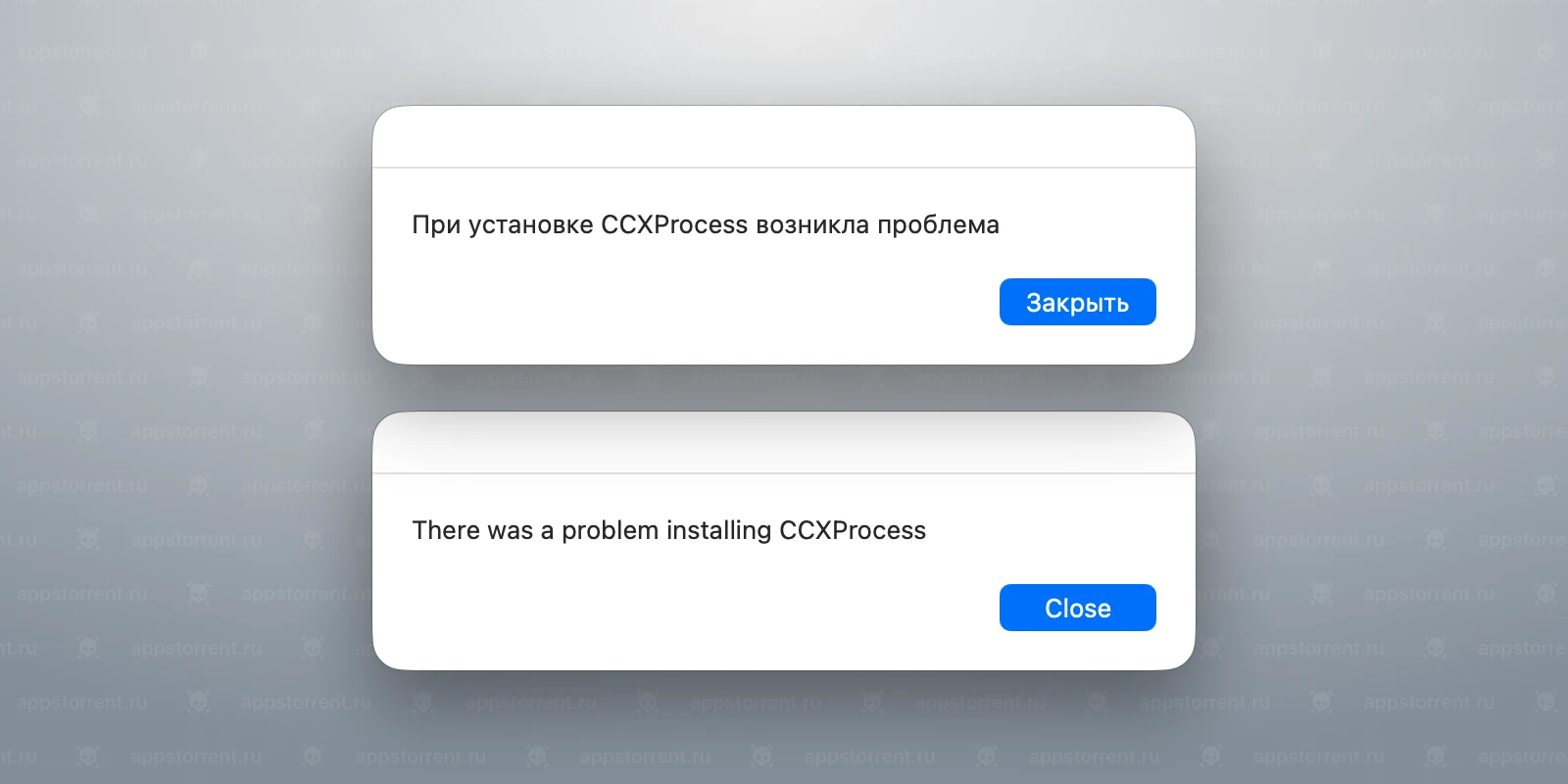
Problem: The CCXProcess component (part of Creative Cloud) isn’t installing.
Cause: Rosetta (needed to run Intel code on a Mac with an M-chip) isn’t installed.
Solution for Error: Problem with CCXProcess when installing Adobe
Solution:
1. Open Terminal.
2. Install Rosetta using the command in Terminal:/usr/sbin/softwareupdate –install-rosetta –agree-to-license
. 3. Wait for the message: “Installation of Rosetta 2 finished successfully.”
4. Run the Adobe installation again – CCXProcess will install without errors.
Error: Installation is not possible on Intel processors.
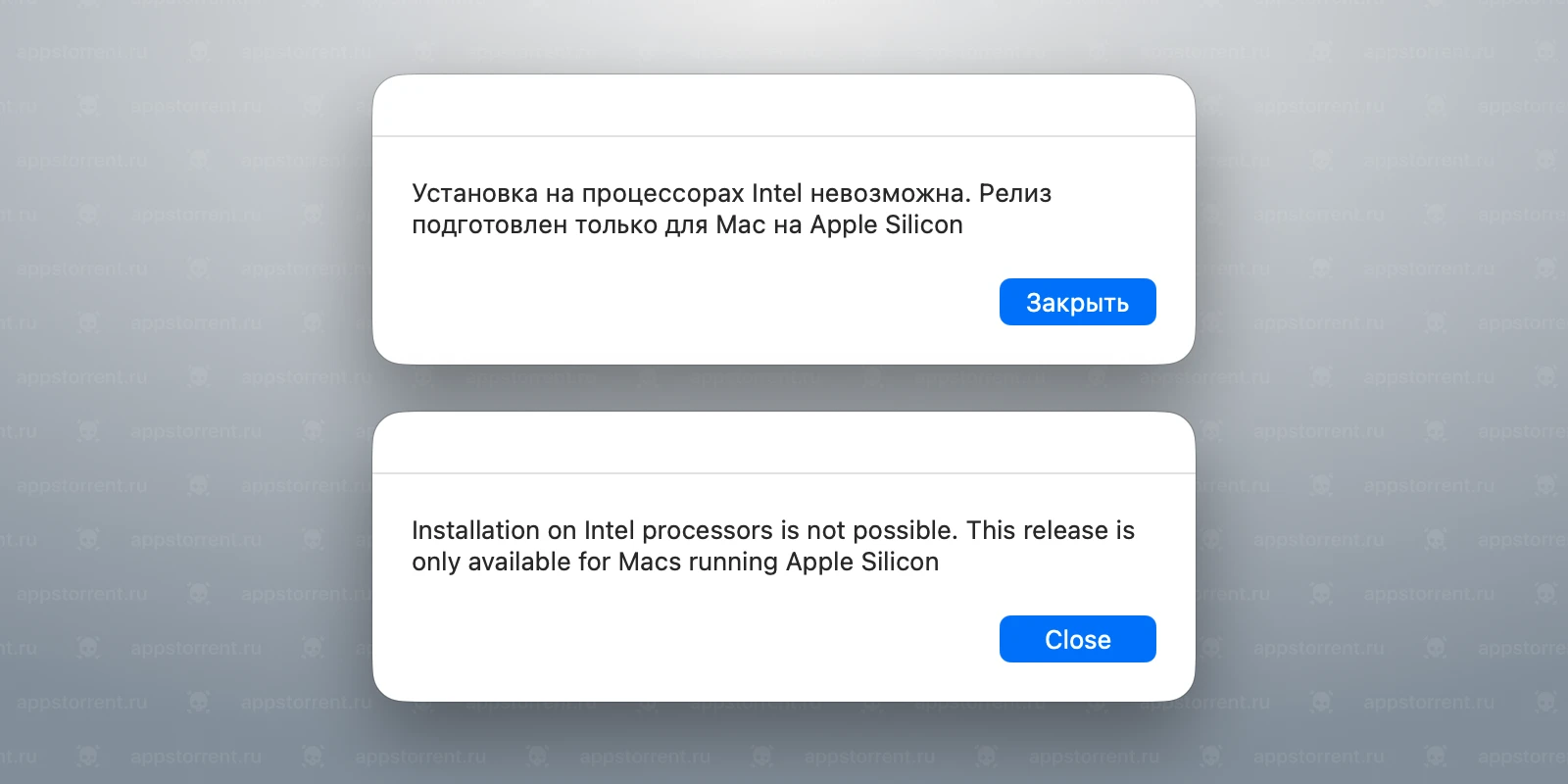
Reason: Monter Group releases only support Apple Silicon (M1, M2, M3, and newer). Intel architecture is incompatible with Apple Silicon.
Find out more and options for solving the problem…
In simple terms:
Architecture is the “language” of the processor.
– Intel speaks English
– Apple Silicon speaks Russian.
A program in Russian will not understand an English processor.
Universal programs contain both languages - work everywhere.
Rosetta is a translator:
Allows you to run Intel programs on Apple Silicon, but with a load on the system.
Solution:
Use universal versions:
• Releases with Adobe Activation Tool.
• Releases from QiuChenly.
• Releases from RiD.
Error installing .pkg packages
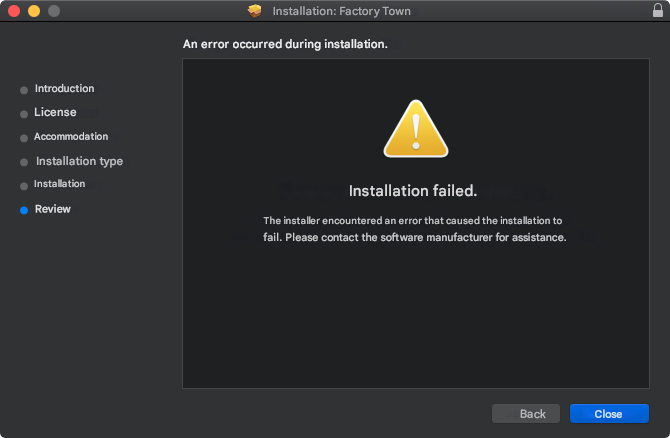
Installation failed. The installer encountered an error that caused the installation to fail. Contact the software manufacturer for assistance.
Solution for Error installing .pkg packages
This error most often occurs when installing games downloaded from GOG as packages, and most often when installing very large games. It typically occurs during the final installation step and is caused by the postinstall script embedded in the installer having incorrect permissions.
You can try extracting the game files from the .pkg installer yourself using the standard pkgutil utility or an archiver. Alternatively, you can use specialized programs designed for extracting files from such packages, such as pkg2app or Pacifist.
If the problem is related to the game installer from GOG, the easiest way is to use pkg2app, as it’s open-source, free, and only weighs a couple of megabytes.
Simply launch pkg2app , configure the location where the package files will be extracted, drag the problematic .pkg file onto the pkg2app icon , and wait for the files to be extracted.