


RightFont
Download RightFont
Previous Versions

RightFont is a powerful, professional font manager application designed exclusively for macOS. It is widely used by graphic designers and creative professionals to organize, preview, install, and share their font collections efficiently.
Here is an overview of its main features and system requirements:
Key Features
-
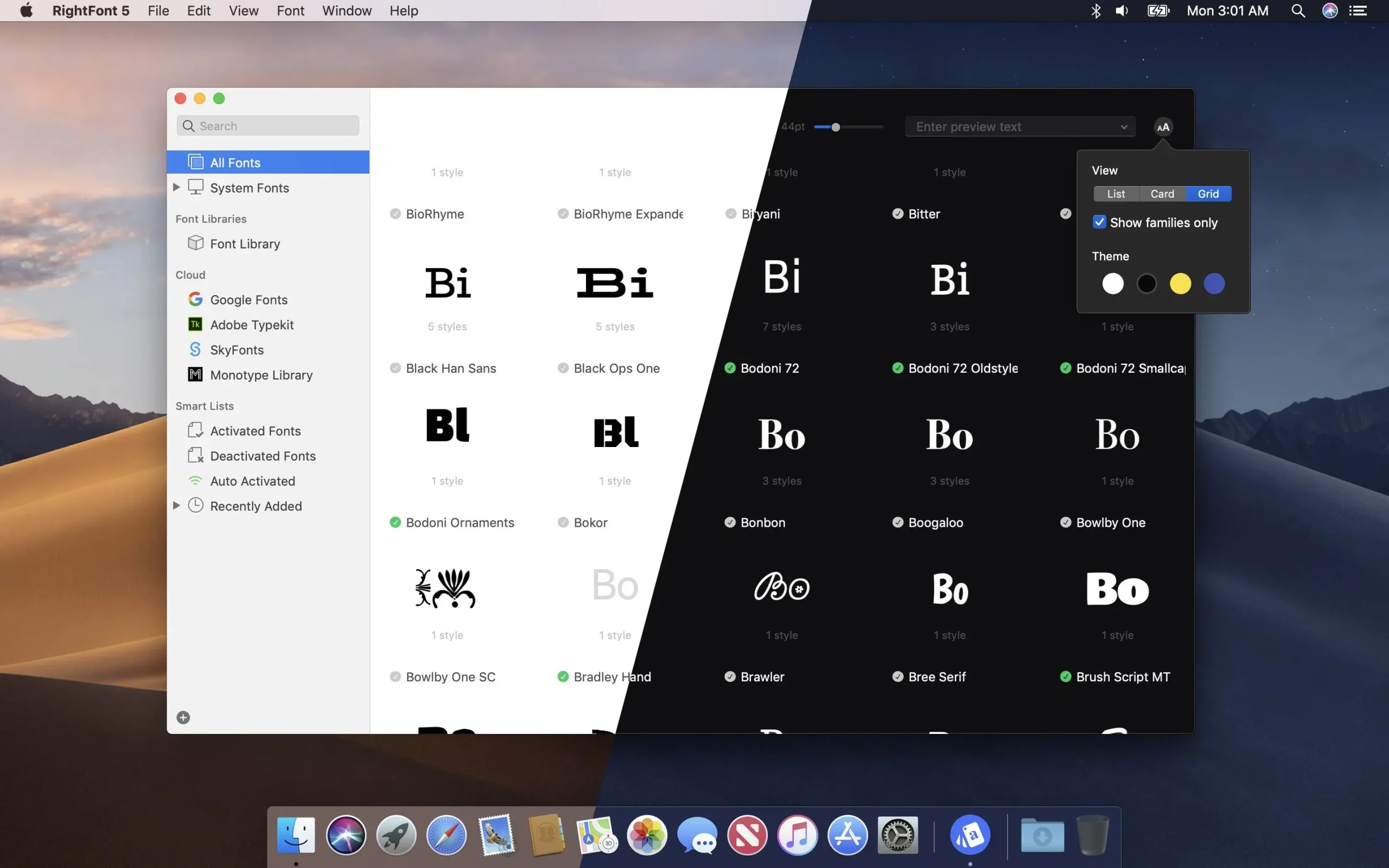
Font Management: Effortlessly organize your massive font library using Font Libraries, Fontlists (for specific projects or clients), and tagging systems.
-
Previewing: Quickly preview all your fonts with customizable text and multiple grid views, including support for color fonts and font glyphs.
-
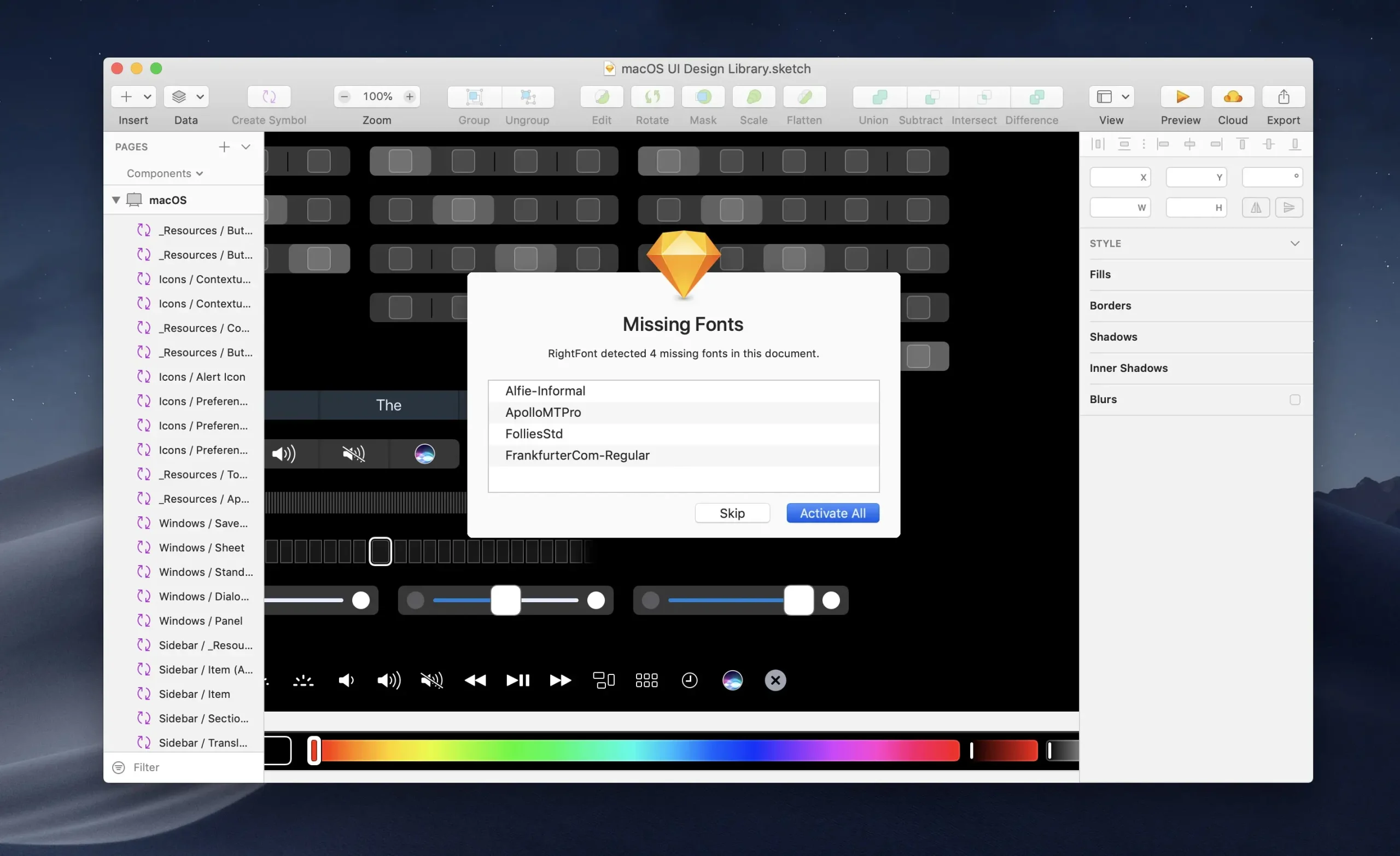
Auto-Activation: It integrates seamlessly with popular design software and can automatically detect and activate missing fonts when you open a document in:
Adobe Creative Cloud: Photoshop, Illustrator, InDesign, After Effects, XD, and Animate.
- Other Apps: Sketch, Affinity Suite, Figma, Microsoft Office (Word, Excel, PowerPoint), and more.
-
Cloud Syncing & Sharing: Easily share your font libraries, lists, and tags with your team members by syncing them via cloud drives like Dropbox, Google Drive, or OneDrive.
-
Google Fonts: Quickly sync and manage the entire Google Fonts library for local use on your Mac.
-
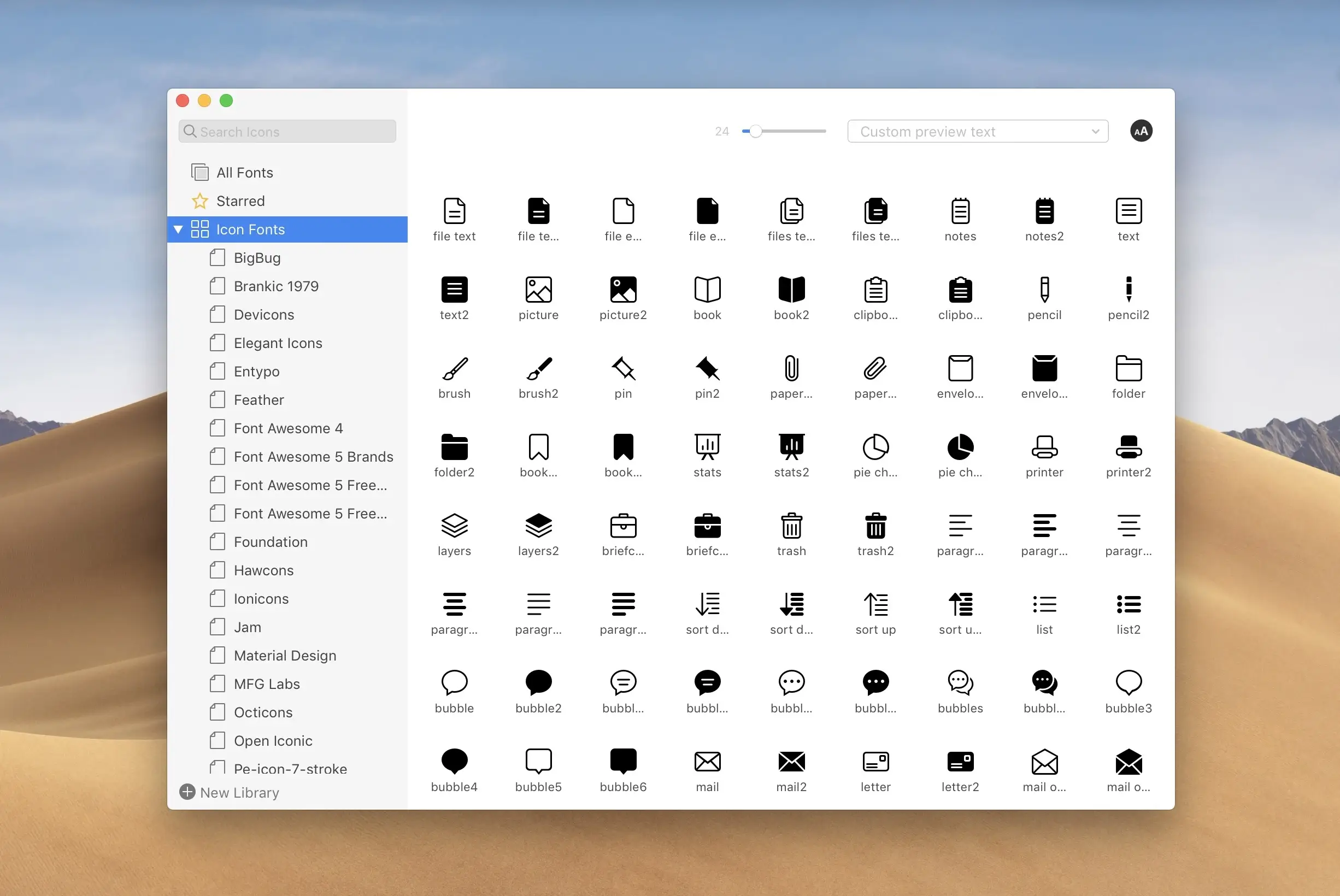
Icon Fonts: Supports drag-and-drop insertion of thousands of vector icons directly into design apps like Photoshop or Illustrator.
Requirement Specification Operating System macOS 11.0 (Big Sur) or newer (includes Monterey, Ventura, Sonoma, etc.) Architecture Fully compatible with both Intel-based Macs and Apple Silicon (M1, M2, M3) Macs. Disk Space Minimal, as it's a font manager and not a media-heavy application. Prerequisites None specified; runs as a native macOS application.
Frequently Asked Questions
Mount the image and run Open Gatekeeper friendly.
Press Enter to bypass Gatekeeper in the Terminal window.
Drag the application to the Applications folder.
The application is ready for use.
ATTENTION! SIP must be disabled. Learn more >
Restart your Mac and hold down Command + R to enter Recovery Mode.
Open Terminal from the Utilities menu.
Enter the command: csrutil disable
Restart your Mac.
This is a common Gatekeeper issue. Follow these steps:
1. Open Terminal
2. Enter: sudo xattr -rd com.apple.quarantine /Applications/AppName.app
3. Replace "AppName" with the actual application name
4. Press Enter and enter your password
Yes, all our downloads are thoroughly checked for viruses and malware.
We use multiple antivirus engines to scan every file.
Our team tests each application before publishing.
We never bundle adware or unwanted software.
Yes, we regularly update our applications to the latest versions.
You can check our website for updates or subscribe to our newsletter.
We strive to provide the most recent versions within 24-48 hours of release.
If a download link is not working, please:
1. Try a different browser
2. Clear your browser cache and cookies
3. Try the alternative download links provided
4. Contact our support team if the issue persists